
Publish and manage ads
In clasify Business, ads are created from inventory articles. You can publish them directly from the inventory or check existing live ads in the platform view.
Check before publishing
Section titled “Check before publishing”- Is a platform connected?
- Is your listing profile complete?
- Does the article have a title, description, price, location and images?
- Does the category roughly fit the article?
- Are legal details such as the legal notice (Impressum) filled in?
Publish an ad from the inventory
Section titled “Publish an ad from the inventory”-
Open Inventar (Inventory).
-
Find the article you want.
-
Open the publish action in the row.
-
Choose the platform, for example Kleinanzeigen or Flinkanzeigen.
-
Click Inserieren (Publish).
-
Wait until the status in the Plattformen (Platforms) column updates.
-
If needed, open the ad directly on the platform.
Publish several articles
Section titled “Publish several articles”Select several articles in the inventory and use the bulk action Inserierungen (Listings). Then choose the platform and the action you want:
- Inserieren (Publish): Create new ads.
- Neu inserieren (Republish): Remove existing ads and post them again.
- Anzeigen entfernen (Remove ads): Remove ads from the platform; the articles stay in the inventory.
- Alle pausieren (Pause all) or Alle aktivieren (Activate all): Change the status of several live ads.
Manage ads in the platform view
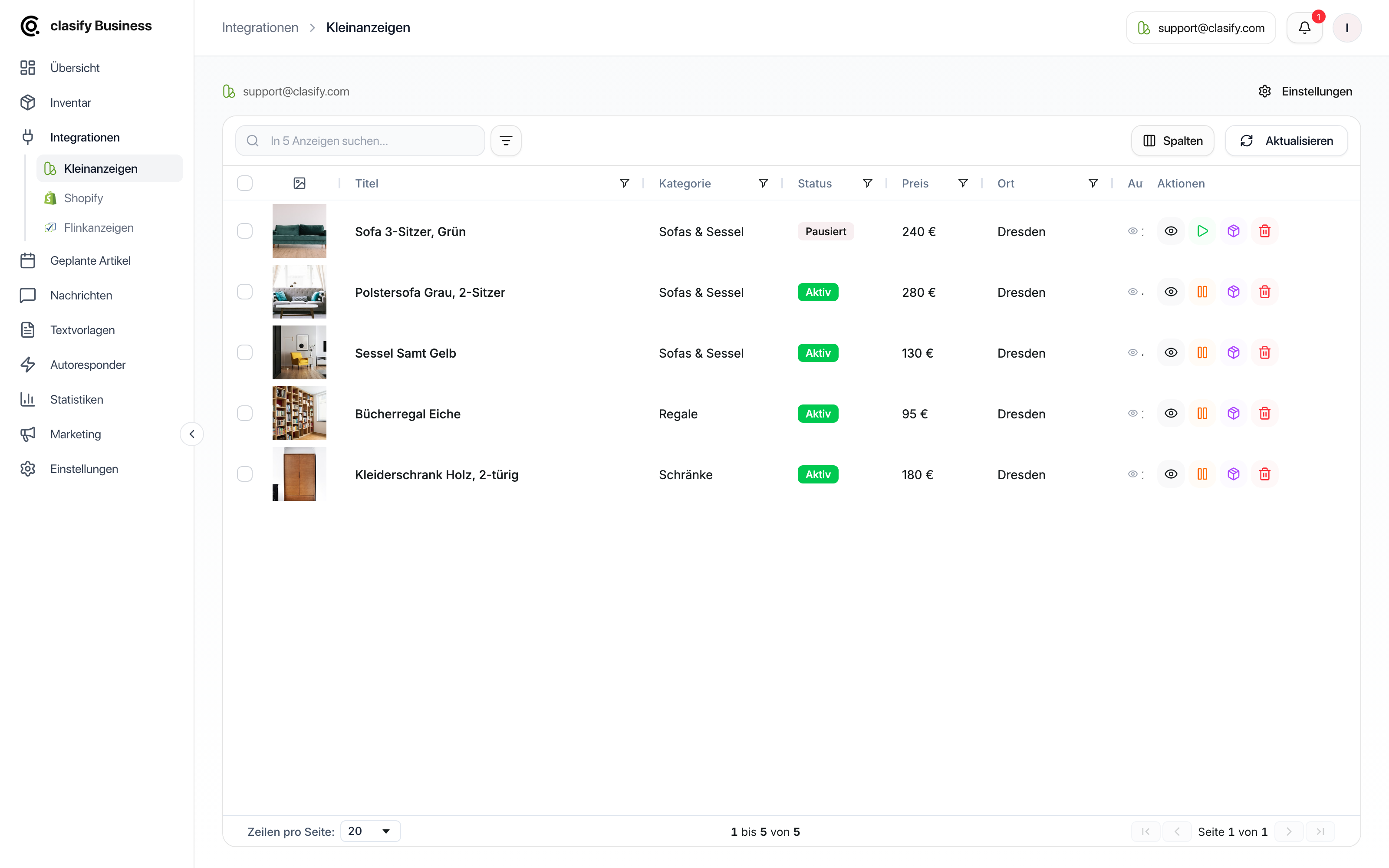
Section titled “Manage ads in the platform view”Under Integrationen > Kleinanzeigen (Integrations > Kleinanzeigen) you see your live ads. There you can:
- Open ads.
- Pause or activate ads.
- Delete ads.
- Save existing ads to the inventory.
- Sync ads with the inventory.
- Check views, watchers, enquiries and booked visibility options.
The Inventar column shows whether an inventory article already exists for a live ad.
The platform view is especially helpful if you already have ads on Kleinanzeigen and want to bring them into clasify Business afterwards.
Save to inventory or sync with inventory?
Section titled “Save to inventory or sync with inventory?”Both actions sound similar but do different things:
- Im Inventar speichern (Save to inventory) creates a new inventory article from a live ad. Use it for ads that clasify does not know yet.
- Inventar synchronisieren (Sync inventory) links existing live ads to the matching inventory articles and updates their status and metrics. Use it when the link has been lost or status values in the inventory look outdated.
You start the sync above the list for all ads, or as a bulk action for your selection.
Bulk actions in the platform view
Section titled “Bulk actions in the platform view”When you select several ads in the Kleinanzeigen view, you can do the following with them together:
- sync with the inventory,
- save to the inventory,
- activate,
- pause,
- delete.
Understand the status
Section titled “Understand the status”- Aktiv (Active): The ad is live.
- Pausiert (Paused): The ad is not active but can be activated again.
- In Bearbeitung (In progress) or Ausstehend (Pending): clasify is still processing the action.
- Fehler (Error): The ad could not be created or updated.
- Gelöscht (Deleted): The ad was removed or no longer exists on the platform.
Changes to live ads
Section titled “Changes to live ads”When you edit a published article, changes are not always updated live automatically. Save the article in a way that has clasify update the active ad if the changes should also become visible on the platform.
You can find more under Edit articles and update them live.
How ads perform
Section titled “How ads perform”Whether a published ad is actually seen and receives messages, you can read under Understand statistics. If a publication fails, you can find the typical causes under Common problems.