
Manage your inventory
The Inventar (Inventory) is the core of clasify Business. This is where all your articles live before they are published, scheduled, synced or edited again later. An inventory article is first and foremost a clasify article of its own, not tied directly to the form of one particular platform.
Why the inventory matters
Section titled “Why the inventory matters”Many platforms work with their own categories, required fields and attributes. In the inventory, you describe your article in a neutral and easy-to-understand way instead. Only when you publish does clasify prepare this data for the platform in question.
This helps you in three situations:
- You do not have to re-enter title, description, price, location and images for every platform.
- You can quickly see which articles are live, paused or not yet published.
- You can later edit, schedule or republish articles, or bring them to further platforms.
What a good inventory article contains
Section titled “What a good inventory article contains”- A specific title.
- A clear description covering condition, dimensions, material, brand, what is included and any special features.
- A suitable price and price type.
- Images that show the condition and details.
- Location and shipping details.
- Optionally an internal reference or tags.
The better these details are, the easier it is for clasify to create suitable ads from them.
How articles get into the inventory
Section titled “How articles get into the inventory”-
Create manually: Suited to individual articles or articles with many special features. More on this: Create an article manually.
-
Create with AI: Suited to when you have images and want to prepare the title and description faster. More on this: Create articles with AI.
-
Import from Shopify: Suited to when Shopify is your product source. More on this: Import and sync Shopify products.
-
Import from a feed: Through a CSV, JSON or XML source or a Google Sheet. More on this: Set up feed import.
-
Take over from existing ads: In the ads view, you can save existing Kleinanzeigen or Flinkanzeigen ads to the inventory.
Filter by status
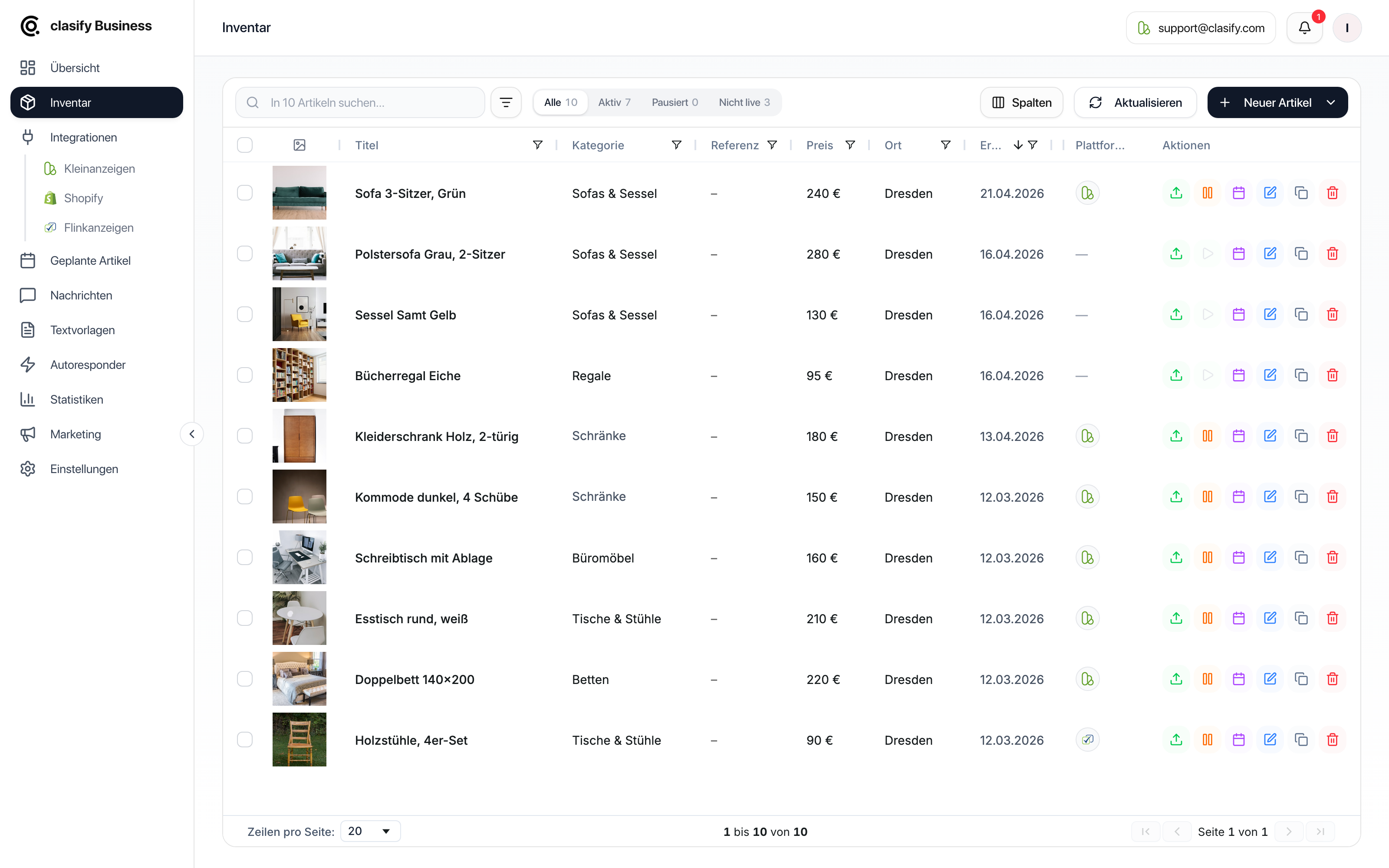
Section titled “Filter by status”Above the list you will find tabs with the respective counts:
- Alle (All)
- Aktiv (Active): at least one live ad.
- Pausiert (Paused)
- Geplant (Scheduled): a publication is scheduled for the article.
- Nicht live (Not live): the article is not published on any platform.
These tabs are the quickest way to narrow down the right selection before a bulk action.
The most important columns
Section titled “The most important columns”- Bild (Image) shows the main image.
- Titel (Title), Beschreibung (Description), Kategorie (Category), Referenz (Reference), Preis (Price) and Ort (Location) help you find things again quickly. You can also search and filter the Beschreibung column, for example to find all articles with an outdated text block.
- Inseriert am (Listed on), Besucher (Visitors), Gemerkt (Saved) and Nachrichten (Messages) show performance data when the article is live on Kleinanzeigen.
- Hochschieben (Bump up) shows when a Kleinanzeigen ad can be pushed back to the top again.
- Käufe (Purchases) shows active visibility options.
- Plattformen (Platforms) shows where the article is published and what status it has there.
Typical actions in the inventory
Section titled “Typical actions in the inventory”- Inserieren (Publish): publish an article on a connected platform.
- Neu inserieren (Republish): remove the existing ad and publish it again.
- Entfernen (Remove): remove the ad from the platform but keep the article in the inventory.
- Pausieren/Aktivieren (Pause/Activate): temporarily stop live ads or activate them again.
- Planen (Schedule): schedule a publication for later.
- Bearbeiten (Edit): change article data.
- Duplizieren (Duplicate): create a similar article faster.
- Löschen (Delete): remove an article from the inventory. If the article is live, clasify asks whether to delete nur der Artikel (only the article) or Artikel und Anzeigen (article and ads). If you delete only the article, the ad stays on the platform but is no longer managed by clasify.
Using bulk actions
Section titled “Using bulk actions”You can select several articles and edit, schedule, sync, publish, pause, activate or delete them together. This is helpful for larger ranges. Always check beforehand that the selected articles really belong together.
How to change prices, texts, images and contact details for many articles at once is covered under Bulk editing. Bulk actions run in the background; you can follow their progress under Tasks and progress.
Avoiding common mistakes
Section titled “Avoiding common mistakes”- Do not publish articles before you have checked the title, description, location and images.
- Write important properties in the article text, not only in internal notes.
- Check imported Shopify texts, because shop texts are not always suitable as a Kleinanzeigen description.
- Only delete articles with active ads deliberately.
- Use filters and search when you work with many articles.