
Scheduled articles
With scheduled articles you control when prepared ads are published. This helps if you want to put a range of items online gradually.
Schedule a single ad
Section titled “Schedule a single ad”-
Open Inventar (Inventory).
-
Check the article you want to publish later.
-
In the article row, click Anzeige planen (Schedule ad).
-
Choose Manuell (Manual).
-
Set the date and time.
-
Decide what should happen if the article is already published.
-
Click Planen (Schedule).
Spread several ads automatically
Section titled “Spread several ads automatically”If you select several articles, you can spread them automatically over a period. To do this, you set:
- Start date and end date.
- The time of day at which to publish.
- A random deviation in minutes.
- Whether the order should be shuffled.
clasify shows you a preview before the jobs are created. It shows the period, the daily time window, the approximate gap between two articles and the first scheduled dates with article names.
Repeat regularly
Section titled “Repeat regularly”In the Manuell tab you can also turn on the Wiederholen (Repeat) switch. clasify then creates a whole series of dates and republishes the ad at each date. This replaces pushing it up manually.
More on this under Publish ads on a recurring schedule.
If already published
Section titled “If already published”When scheduling, you can set what should happen if an article is already live at the scheduled time:
- Überspringen (Skip): The job is marked as done. The existing ad stays unchanged.
- Löschen & neu inserieren (Delete & republish): The existing ad is removed and posted again. This can make sense if you want to deliberately reposition an ad.
Understand the status
Section titled “Understand the status”- Geplant (Scheduled): The job is waiting for its time.
- In Bearbeitung (In progress): clasify is publishing right now.
- Abgeschlossen (Completed): The ad was created.
- Fehlgeschlagen (Failed): The publication could not be carried out.
You can retry or delete failed jobs. To do so, open the job in the calendar or in the list.
Calendar and list
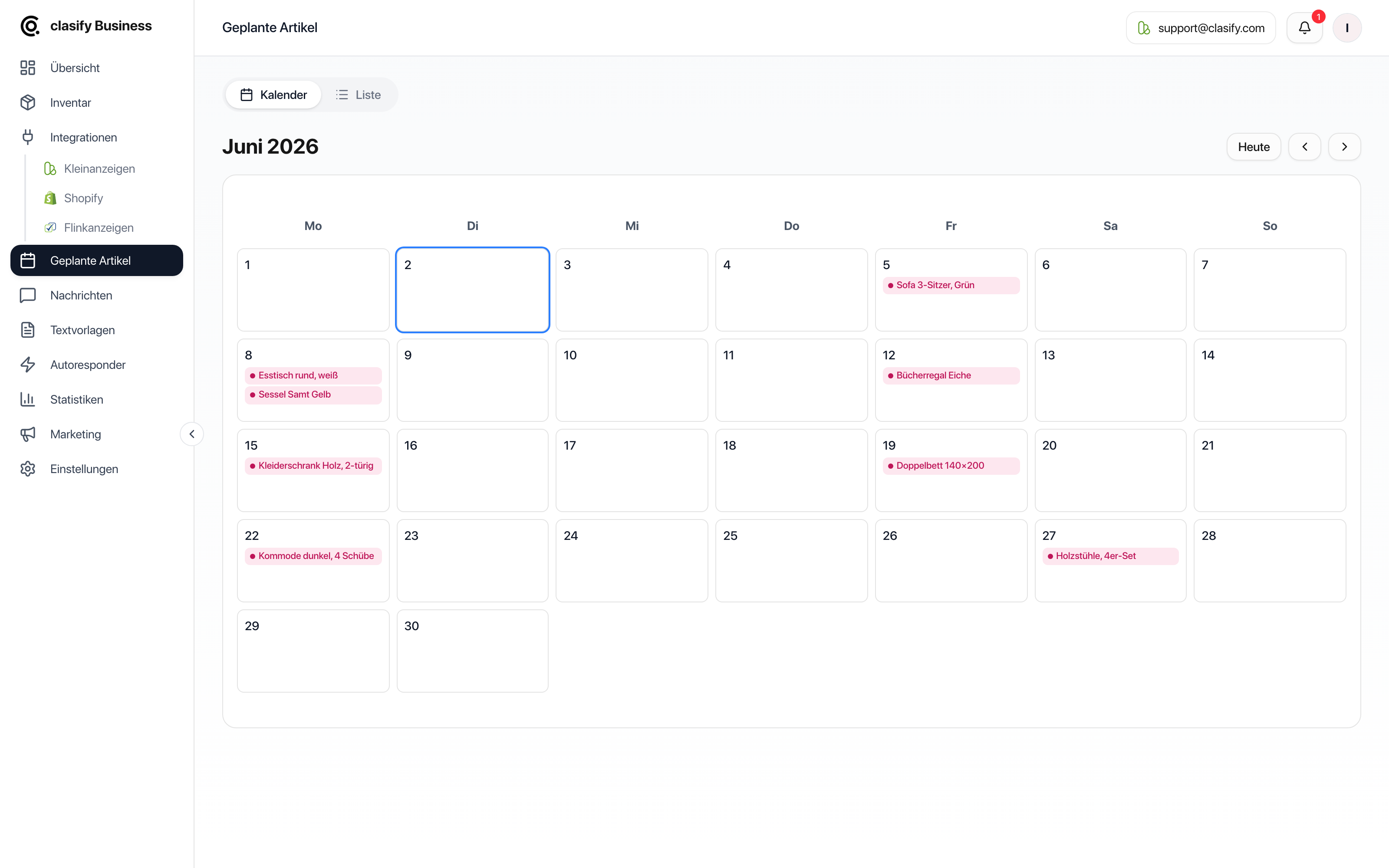
Section titled “Calendar and list”The Kalender (Calendar) tab is suited for the monthly overview. The Liste (List) tab is suited for when you want to search specifically for scheduled, completed or failed jobs.
Limits
Section titled “Limits”Scheduled jobs can be created at most one year ahead. Your plan may also limit the calendar feature or the number of scheduled jobs.
If a schedule would exceed the limit, clasify first shows a notice with the existing, the new and the maximum possible jobs. Then delete jobs you no longer need or schedule fewer articles at once.