
Create an article manually
A manual article is a good fit when you want to write the details yourself or already know exactly what the ad should look like.
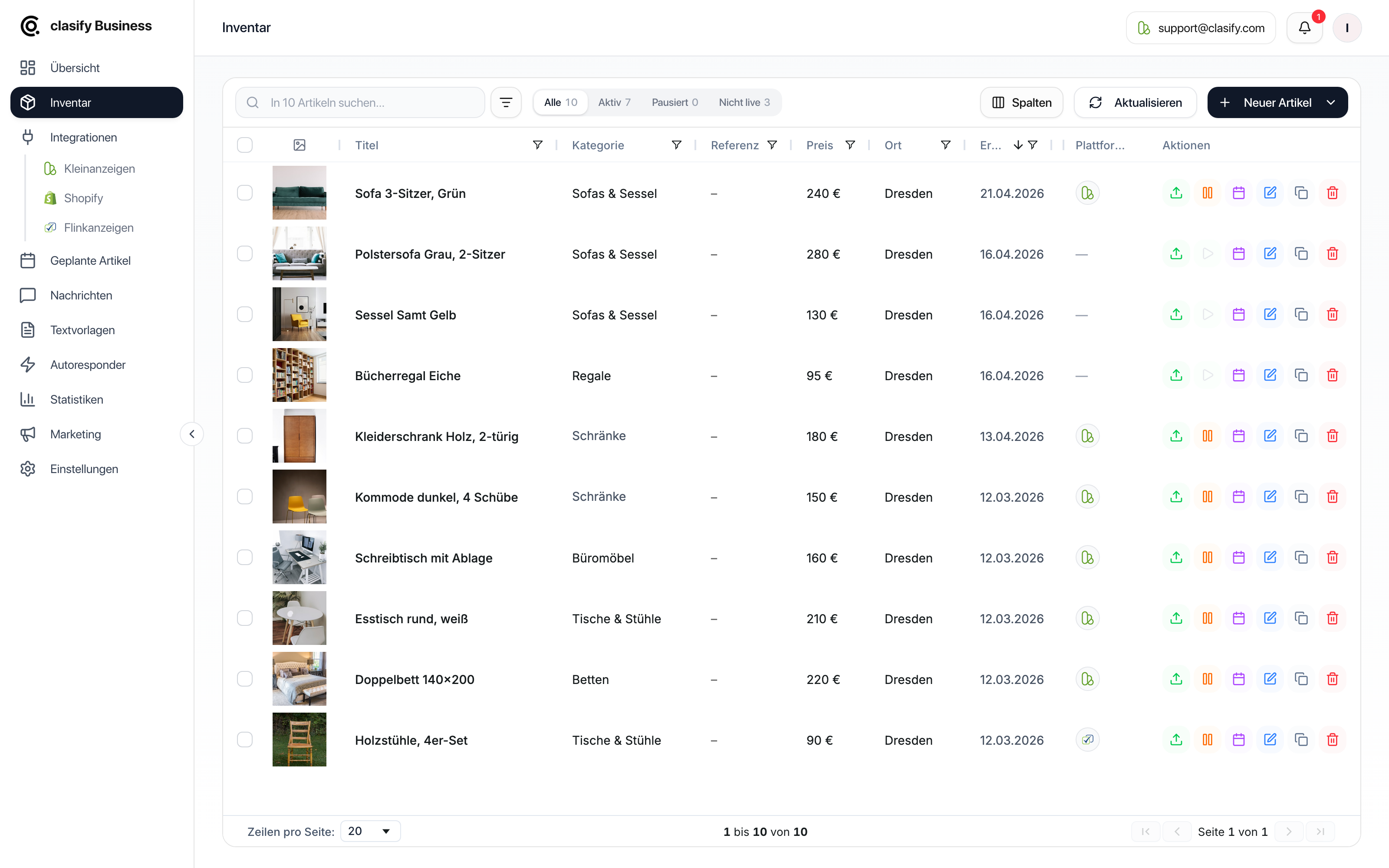
Create an article
Section titled “Create an article”After saving, the article is in your inventory. It is not automatically published on Kleinanzeigen or Flinkanzeigen yet.
Key fields
Section titled “Key fields”Allgemein (General)
Section titled “Allgemein (General)”Here you set:
- Titel (Title) as a required field.
- Referenz (Reference): an internal article number you can use to find the article again later.
- Kategorie (Category).
- Angebotsart (Offer type): offer or wanted.
- Preis (Price) and Preistyp (Price type): Festpreis (fixed price), VB (or nearest offer), Zu verschenken (free to a good home) or Auf Anfrage (price on request).
Beschreibung (Description)
Section titled “Beschreibung (Description)”The description is the text prospective buyers will read. Write clearly what is being sold, what condition the article is in and whether there is anything special to be aware of.
You can structure the text with headings, bold text and lists, and use Vorlage einfügen (Insert template) to add a text template. More on this under Format descriptions.
Bilder und Details (Images and details)
Section titled “Bilder und Details (Images and details)”Add meaningful images. Good images make the biggest difference to enquiries later. How many images per article are possible depends on your plan.
In the same tab you will also find:
- Versand (Shipping): pickup, shipping and optionally an individual shipping price.
- Tags: free keywords for internal sorting. Type a word and confirm with Enter.
Dokumente (Documents)
Section titled “Dokumente (Documents)”If documents matter for the article, you can attach up to 10 files, for example data sheets or inspection records.
Standort (Location)
Section titled “Standort (Location)”The location is used for platform ads. Make sure the postcode and city are correct. If you leave the field empty, clasify uses the postcode from your listing profile.
Kleinanzeigen
Section titled “Kleinanzeigen”Here you enter the externer Bewerbungslink (external application link) for job ads. Applicants are then sent to your own site instead of writing through Kleinanzeigen messages. This only takes effect in job categories.
Plattformen (Platforms)
Section titled “Plattformen (Platforms)”Shows which platforms the article is published on and which actions are possible. For a new article, this area is still empty.
Help in the edit window
Section titled “Help in the edit window”Two areas next to the form support you:
- Tipps & Attribute (Tips & attributes): once you have chosen a category, clasify shows which attributes Kleinanzeigen expects for that category and which of them are required. Write these details in the title or description, and clasify can take them over correctly when publishing.
- Live-Vorschau (Live preview): shows what the ad will look like on the platform. Well suited for checking the image selection and title before publishing.
Afterwards
Section titled “Afterwards”After saving, you can:
- publish the article right away,
- schedule it for later,
- duplicate it,
- edit it,
- sync it with Shopify or a platform,
- use it as a template for similar articles.