
Bulk editing
Bulk editing lets you change several inventory articles in one go. It pays off, for example, when you adjust prices across a whole range, replace a standard text, or when your location or legal notice (Impressum) changes.
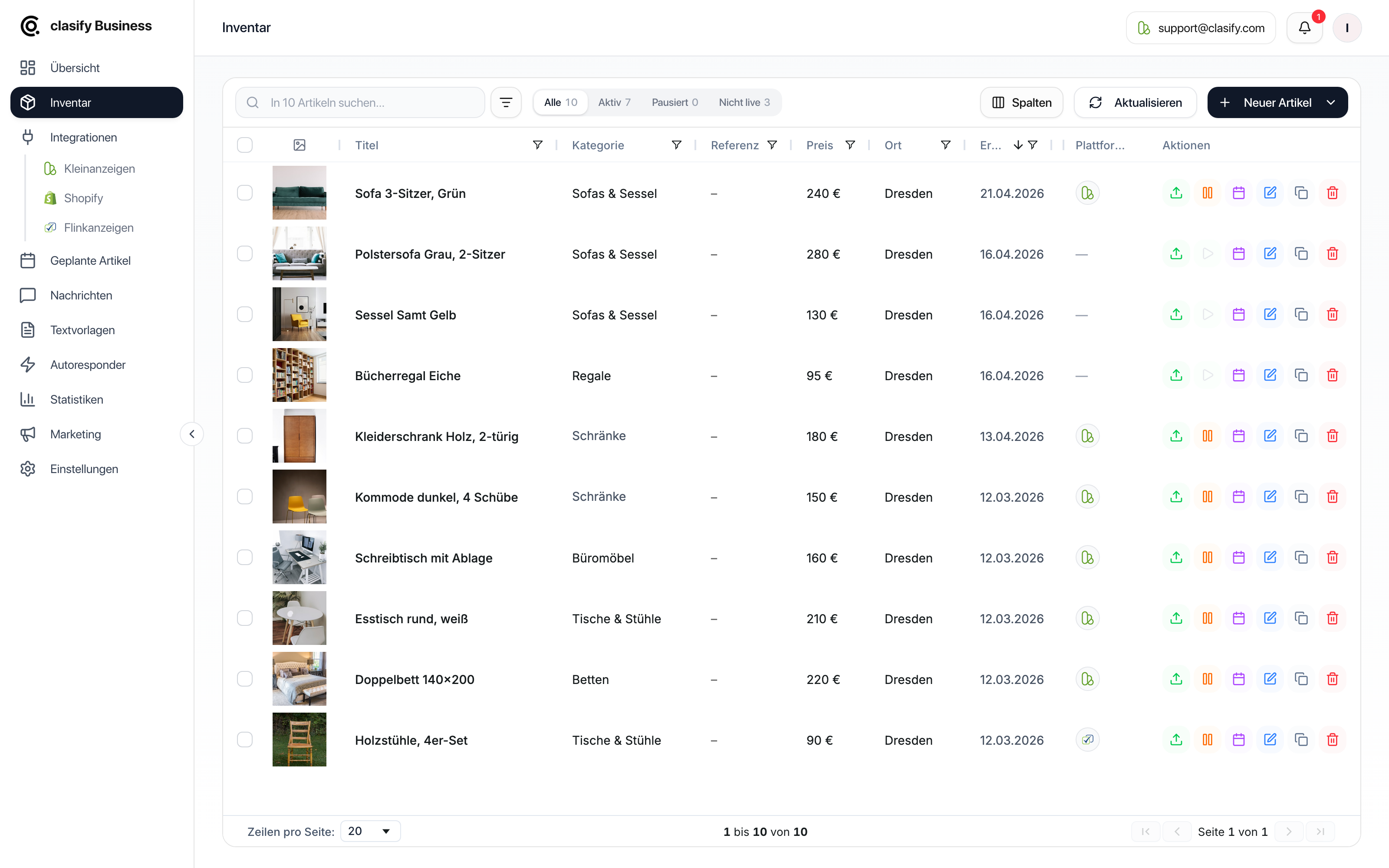
Select articles and open bulk editing
Section titled “Select articles and open bulk editing”-
Open Inventar (Inventory).
-
Narrow down the list using search, status filters or column filters.
-
Select the articles you want.
-
Click Bearbeiten (Edit) at the top.
-
Make the changes you want in the tabs.
-
Finish with Nur speichern (Save only) or Speichern & anwenden (Save & apply).
What you can change
Section titled “What you can change”Preis (Price)
Section titled “Preis (Price)”- Auf Betrag setzen (Set to amount): All selected articles get the same price.
- Relativ anpassen (Adjust relatively): Changes the existing price. You can use fixed amounts such as
+10or-20and percentages such as-10%. - Betrag entfernen (Remove amount): Deletes the price, for example for “Auf Anfrage” (On request).
- Preistyp ändern (Change price type): Festpreis (Fixed price), VB (Negotiable) or Zu verschenken (Free to give away).
Titel (Title)
Section titled “Titel (Title)”- Add text at the beginning or the end, for example a seasonal or promotional note.
- Search and replace, for example to swap an old model name for a new one.
Beschreibung (Description)
Section titled “Beschreibung (Description)”- Insert text at the beginning or the end.
- Search and replace. If the replacement field stays empty, the text that was found is removed.
- Replace the entire description.
The editor supports the same formatting as in the article, see Format descriptions.
Bilder (Images)
Section titled “Bilder (Images)”- Add images to the existing images.
- Set an added image as the cover image.
- Shuffle the image order randomly.
- Add documents to the existing documents.
- Delete existing documents by their title, with multiple titles separated by commas.
- Delete all documents.
Standort (Location)
Section titled “Standort (Location)”Set the postal code and street for all selected articles. Handy after a move or when a range of items changes to a different location.
Kontakt (Contact)
Section titled “Kontakt (Contact)”- Contact name, maximum 30 characters.
- Phone number.
- Legal notice (Impressum) for commercial ads.
Kleinanzeigen
Section titled “Kleinanzeigen”Externer Bewerbungslink (Jobs) (External application link, Jobs): Sends interested people to an external application page instead of the Kleinanzeigen messages. This setting only takes effect in Jobs categories.
Save only or apply directly
Section titled “Save only or apply directly”At the end you have two options:
- Nur speichern (Save only): The changes are saved in the inventory articles. Active ads remain unchanged.
- Speichern & anwenden (Save & apply): clasify also transfers the changes to the active ads. This button only appears if at least one selected article is live.
The transfer runs in the background. You can see the progress and any errors in the task panel, see Tasks and progress.
More bulk actions in the inventory
Section titled “More bulk actions in the inventory”In addition to bulk editing, the following are available for your selection:
- Planen (Schedule): Schedule several articles together or spread them over a period, see Scheduled articles.
- Synchronisieren (Sync): Sync listings with the platform.
- Inserierungen (Listings): Publish, republish, remove, pause or activate.
- Löschen (Delete): When you delete, clasify asks whether only the inventory articles or also the associated ads should be removed.
If a change does not take effect
Section titled “If a change does not take effect”- Check that the articles were actually selected. After saving, the selection stays in place so you can run further actions.
- With search and replace, the exact text you entered is searched for, including upper and lower case.
- If a field is synced from an import source, the next sync may overwrite your change again. Check the sync fields of Shopify or your feed.
- If the change is visible in the inventory but not in the ad, it was only saved and not applied.