
Set up feed import
With feed import, you bring articles from your own data source into the inventory, even when there is no ready-made integration for it. Typical sources are shop systems such as WooCommerce, Shopware, JTL or Gambio, an export from your inventory management system, a Google Sheet or an applicant tracking system (ATS) such as coveto.
Requirements
Section titled “Requirements”- Your plan includes feed import. Manual sync is included from Plus, automatic sync from Pro.
- You have a file or a publicly accessible URL in a supported format.
- The source contains at least a title for each entry.
Supported formats
Section titled “Supported formats”clasify Business processes CSV, JSON and XML.
You can paste Google Sheets directly as a URL: clasify recognizes the sheet and retrieves it as CSV. It is important that the sheet is publicly accessible.
URL feed or file import
Section titled “URL feed or file import”Feed import has two tabs:
- URL-Feed (URL feed): clasify retrieves the source itself at regular intervals. This is the only way to get repeated sync and auto-sync. It is the recommended option for anything that changes.
- Datei-Import (File import): You upload a file by drag and drop or file selection. This suits one-off transfers, for example when moving an existing range over.
Create a URL feed
Section titled “Create a URL feed”-
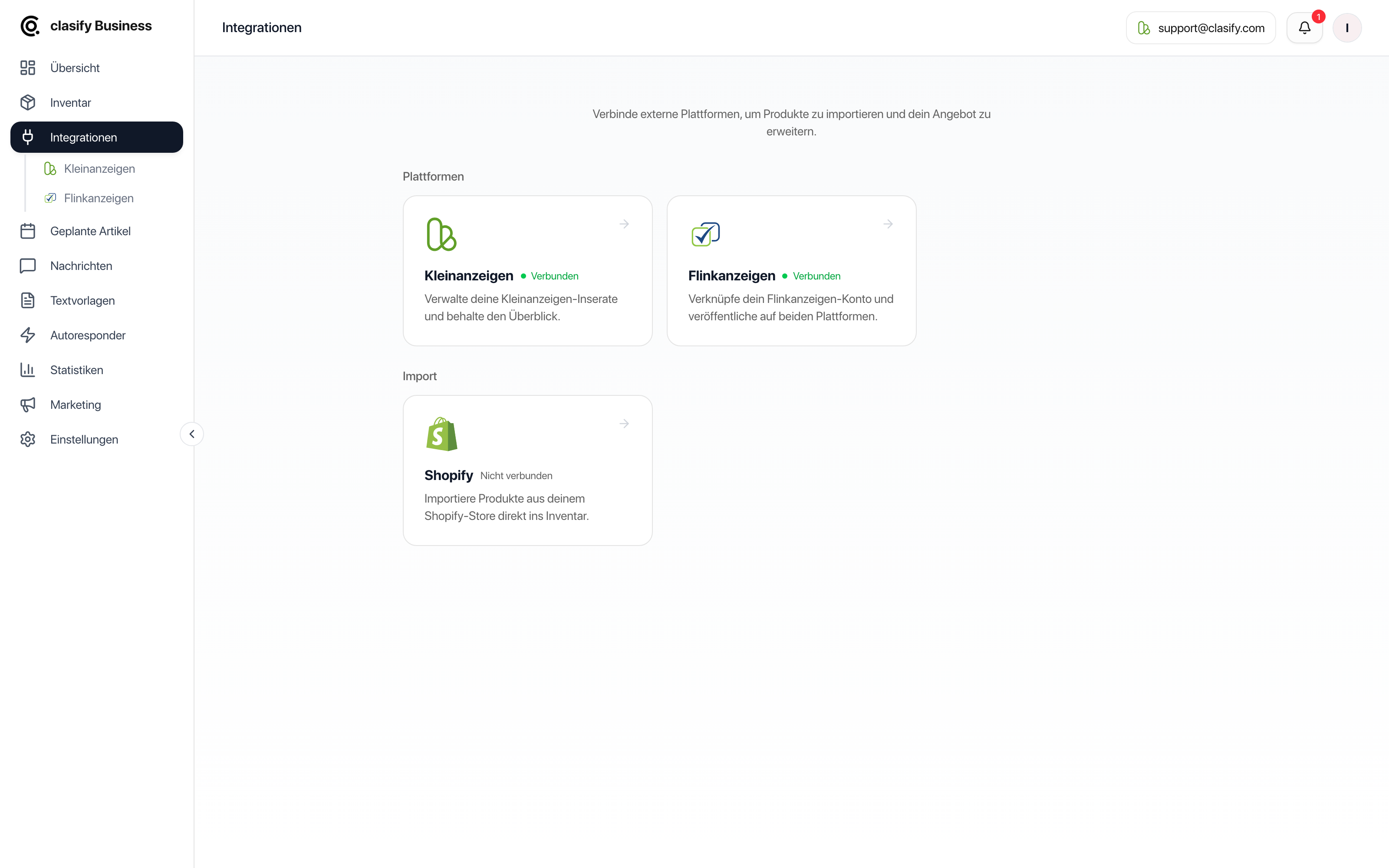
Open Integrationen > Feed-Import (Integrations > Feed import).
-
Stay on the URL-Feed (URL feed) tab.
-
Paste the complete feed URL and click Abrufen (Fetch).
-
Check the Spaltenvorschau (Column preview). clasify shows you the format, the number of rows and a few sample records.
-
Review the Feldzuordnung (Field mapping). clasify already suggests a mapping based on the column names.
-
Set the Optionen (Options).
-
Click Weiter zur Vorschau (Continue to preview) and look at how the articles would be imported.
-
Start the import.
Map fields
Section titled “Map fields”In the field mapping, you connect the columns of your source with the fields of an inventory article:
- Titel (Title): Required field. The import cannot start without a title.
- Beschreibung (Description): The ad text.
- Preis (Price): Amount without a currency symbol.
- Preistyp (Price type): Festpreis (fixed price), VB (negotiable), Zu verschenken (free to a good home) or Auf Anfrage (on request).
- Kategorie (Category): Should be specific so clasify can find the matching platform category. For example, wardrobes or desks rather than just furniture.
- ID / SKU: Stored as a reference and links the feed entry to the inventory article.
- Marke (Brand): Manufacturer or brand.
- Zustand (Condition): For example Neu (new) or Gebraucht (used).
- PLZ (Postal code): Location of the article. Without a value, clasify uses the postal code from your profile.
- Direkt-Bewerben-Link (Apply directly link): Only for job ads on Kleinanzeigen.
You select image URLs separately: click the columns that contain image addresses. The order in which you select them is the order in the ad.
Import options
Section titled “Import options”- Preistyp (Price type): The default price type for all imported articles when the source does not provide its own.
- Netto → Brutto (Net → Gross): Converts net prices from the source into gross prices using the VAT rate you specify.
- Rundung (Rounding): Rounds prices to whole euros.
- HTML → Markdown: Converts HTML descriptions from the shop into clean text. Turn this on if your source delivers descriptions with
<p>or<ul>tags. Learn more in Format descriptions.
Change the mapping later
Section titled “Change the mapping later”If your source changes, you can redo the field mapping via the Einstellungen (Settings) of the feed. clasify notifies you if the new mapping changes existing links. Afterwards, be sure to check a few articles in the inventory.
Sync and auto-sync
Section titled “Sync and auto-sync”With Feed neu einlesen (Re-read feed) you fetch the current data manually. From Pro, you can also turn on automatic sync in the feed settings:
- Zeitplan (Schedule): either as an Intervall (Interval) every 6 hours, every 12 hours or daily, or at festen Zeiten (fixed times) of your choice (Berlin local time, at least 2 hours apart). How many fixed times you can set depends on your plan; Premium allows more than Pro.
- Sync-Felder (Sync fields): Price, title, description and images can each be activated individually. By default only the price is active. Deactivated fields keep your local changes.
- Änderungen auf Plattform übernehmen (Apply changes to platform): Updates not only the inventory article but also the active ad.
- Neue Artikel automatisch veröffentlichen (Publish new articles automatically): Does not just create new feed entries as inventory articles but publishes them straight away.
- Produkt fehlt im Feed (Product missing from feed): Do nothing, pause the ad or delete the ad.
Common errors
Section titled “Common errors”- “Keine Datensätze unter dieser URL gefunden” (No records found at this URL): The URL is not publicly accessible, returns a login page or a different format than expected. Try opening the URL in a private browser window.
- Fields end up in the wrong field: Open the field mapping and correct it. In XML feeds, field names are case-sensitive.
- Images are missing or in the wrong order: Check that all image columns are selected and in which order.
- Prices are wrong: Check the net-to-gross conversion, the VAT rate and the rounding.
- Auto-sync not available: Automatic sync is included from Pro. On the Plus plan, you start the sync manually.
- Import stops with a limit notice: Check Subscription, limits and features to see how many inventory articles your plan allows.
If the feed URL cannot be processed, write to [email protected] or use the support page. Feel free to send us the feed URL, and we will look at the mapping together.